
When you drop files onto your organization's SFTP, each file shows up as its own batch in the Graphium Collector™ Dashboard. You can check the Import Batches page anytime to confirm we received your files and that every record processed.
This works the same whether your files go through Graphium data entry or we pull the data straight from the file (for example, quality or MIPS data).
Before you start
You'll need a Graphium login with access to the Collector Dashboard. If you don't have one, see Collector Dashboard Access or submit an issue and we'll get you set up.
Check your uploaded files
- Log in to the Graphium Collector™ Dashboard: https://dashboard.graphiumemr.com/login
- In the left menu, click Collector, then Batches.
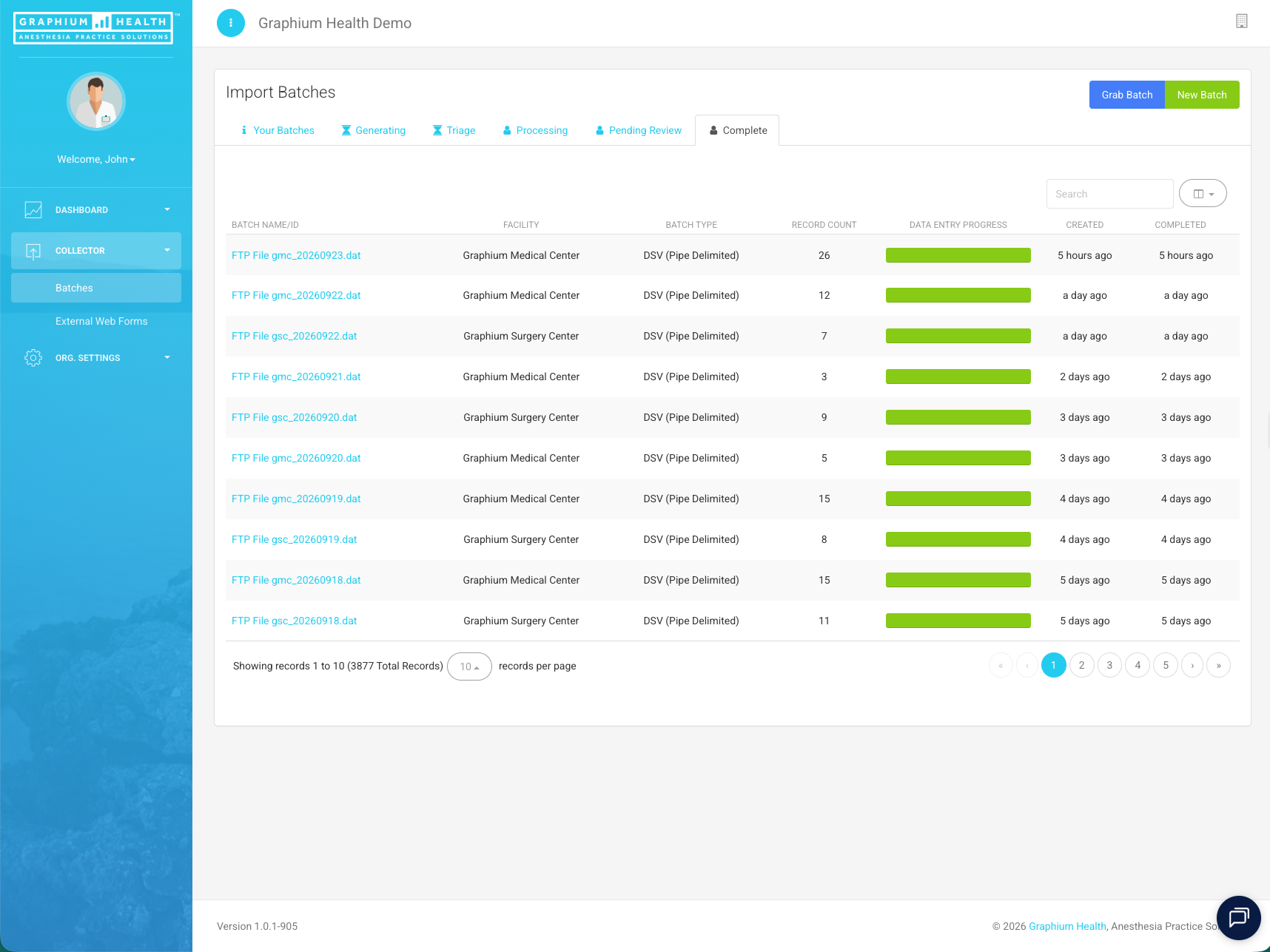
- On the Import Batches page, click the Complete tab.
- Find your files. Each file you uploaded is listed as "FTP File" followed by the file name. You can use the Search box to find a specific file.
What to look for
For each file, check these columns:
- Record Count: how many records were in the file.
- Data Entry Progress: a full green bar means every record processed.
- Created: when the file arrived on our end.
- Completed: when processing finished.
If your file is on the Complete tab with a full green bar, it was received and processed. You're all set.
If you don't see your file on the Complete tab
It may still be moving through the process. Check the other tabs on the Import Batches page:
- Generating: we received the file and records are being created.
- Triage: waiting to be assigned for data entry (data entry files only).
- Processing: currently being worked by our data entry team (data entry files only).
- Pending Review: one or more records need a correction. See Reviewing Pending Form Batches.
If some records didn't process
Sometimes a file processes but a record or two gets stuck. To fix it:
- Click the file name to open the batch details. You'll see the status of each record in the file.
- If any records are incomplete, click Reprocess incomplete records.
- Check the batch again. Once every record is processed, it will move to the Complete tab.
Check your data in the Graphium EMR Dashboard
Another way to confirm your data made it in is to look for it in the Graphium EMR Dashboard. Log in at https://app.graphiumemr.com and check that your data is showing for the facilities and time period in your file. For help logging in, see EMR Dashboard Access.
When to contact us
Submit an issue if your file doesn't show up on any tab, or if records still won't process after you reprocess them. Include the file name and the date you uploaded it so we can find it quickly.
More on the Collector Dashboard